Compose the visual sequence
Start with the experience the audience should follow. A product walkthrough might move from an overview to a detail, while a teaching sequence might introduce a concept and then pause for practice. The editor lets authors arrange text, images, audio, video, and other media across the presentation.
A sequence can also serve as a self-running display. For live or guided use, the author can shape how the audience moves among screens.
Make a lesson respond
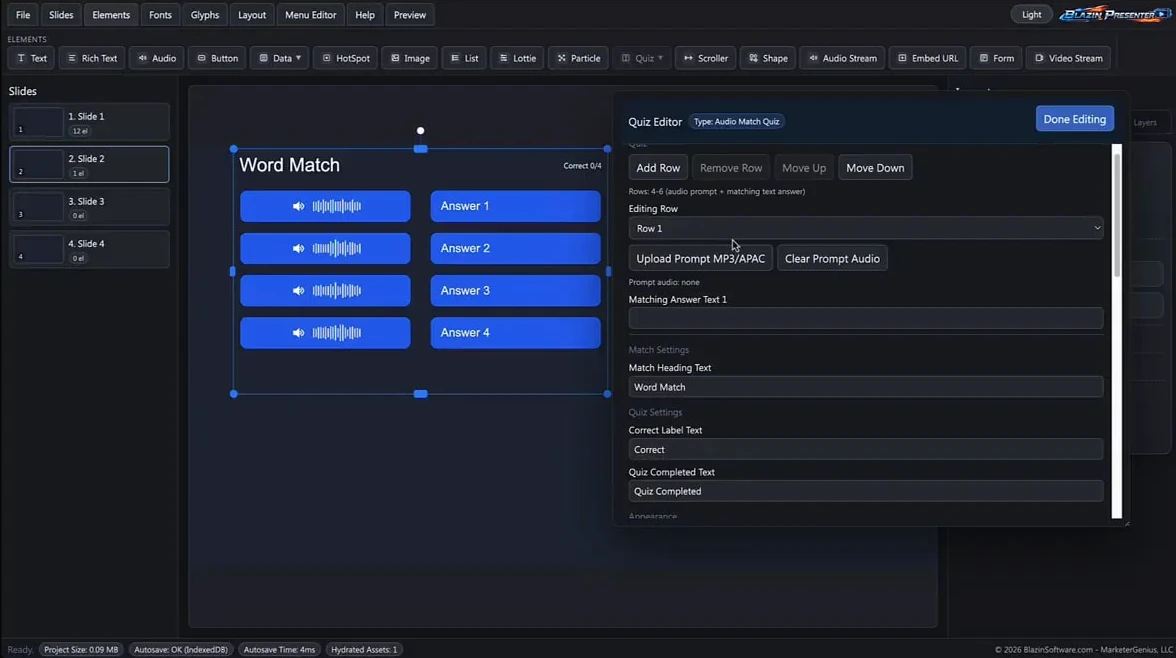
A quiz changes the role of the viewer. In the Word Match example shown above, an author can define a prompt, its matches, and the text shown on completion. This is useful when a lesson calls for checking an association before moving on.
Embedded media and interactive elements can serve a demonstration or training module in different ways. An author can choose the interaction that helps explain the subject.
Choose where the work will run
The official product documentation describes web and standalone exports, WordPress publishing with Blazin Player, and SCORM packages for compatible learning management systems. The choice follows the destination: an embedded web presentation, an offline display, or a lesson delivered through an LMS.
For a publication organized around chapters, annotation, and independent reading, explore Blazin Docs. For the current Presenter workflow and supported publishing options, see the official guide.
Read the Presenter guide